
View Your Reservation
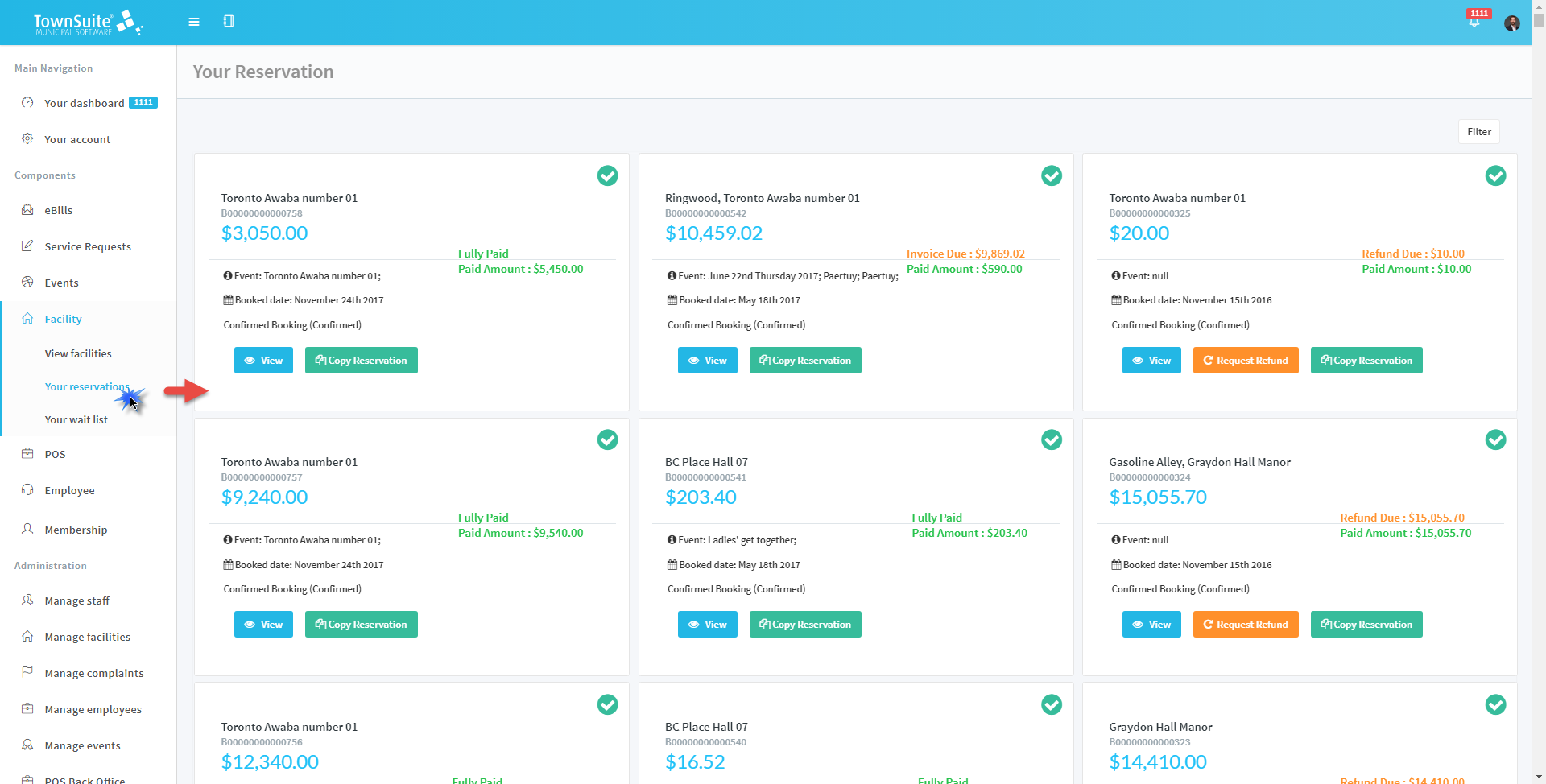
You can reserve different facilities to host various events. View all reservations by navigating to the Your Reservation page.
Click on the Your Reservations sub heading under the Facility heading in the Components section of the main navigation pane. After you have clicked on Your Reservations, you will be navigated to the Your Reservation page where you can see all your reservations.
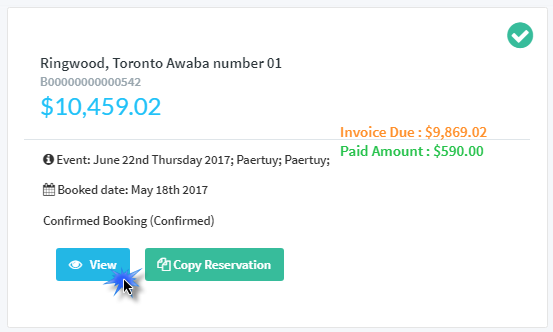
- You can view the booking details by clicking the View button in the relevant reservation.
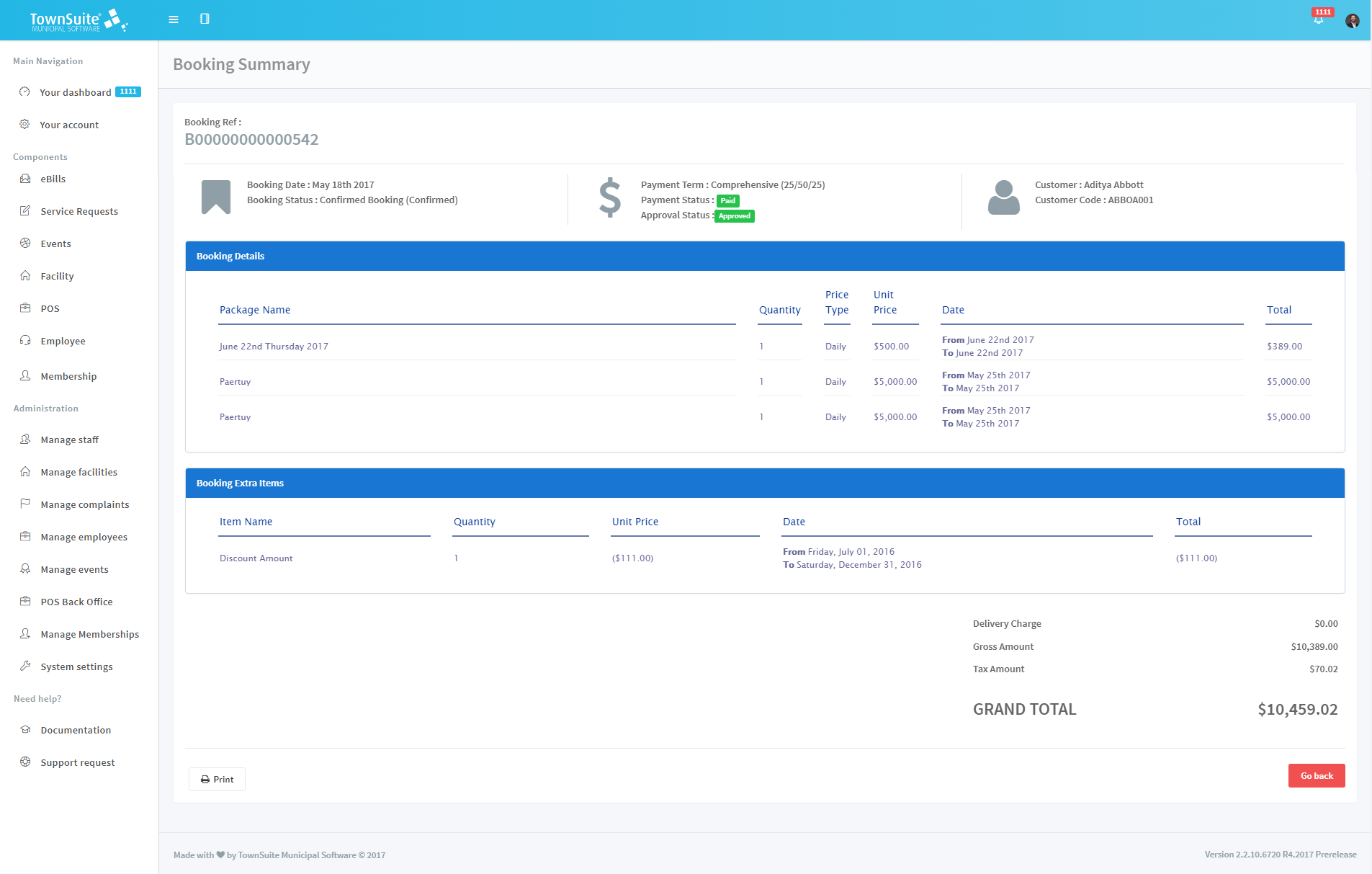
- After the View button has been clicked, you will be navigated to the Booking Summary page.
- To copy the reservation and make a new booking, click the Copy Reservation button.
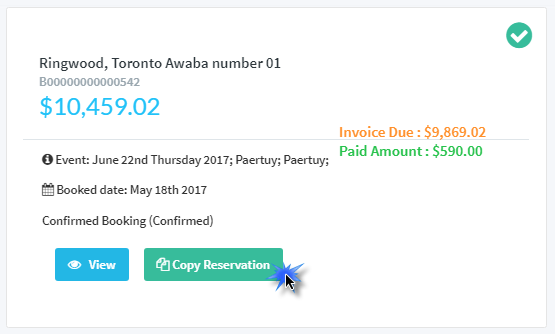
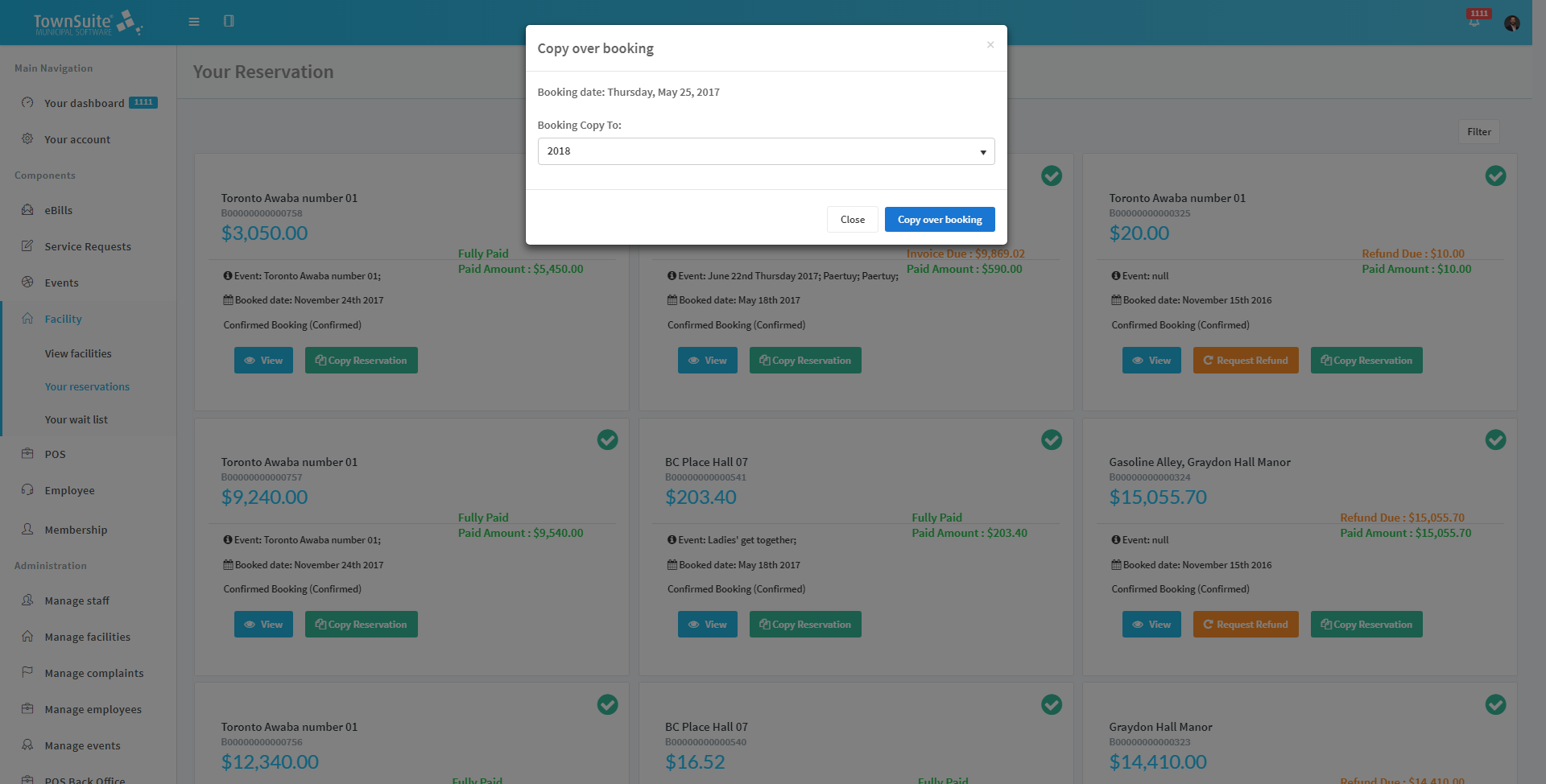
- After the Copy Reservation button has been clicked, the Copy over booking form will be displayed.
-
Select the year that the booking should be copied to from the Booking Copy To dropdown list.
-
After selecting the year, to proceed copying, click the Copy over booking button. To close the form without proceeding, click the Close button.
-
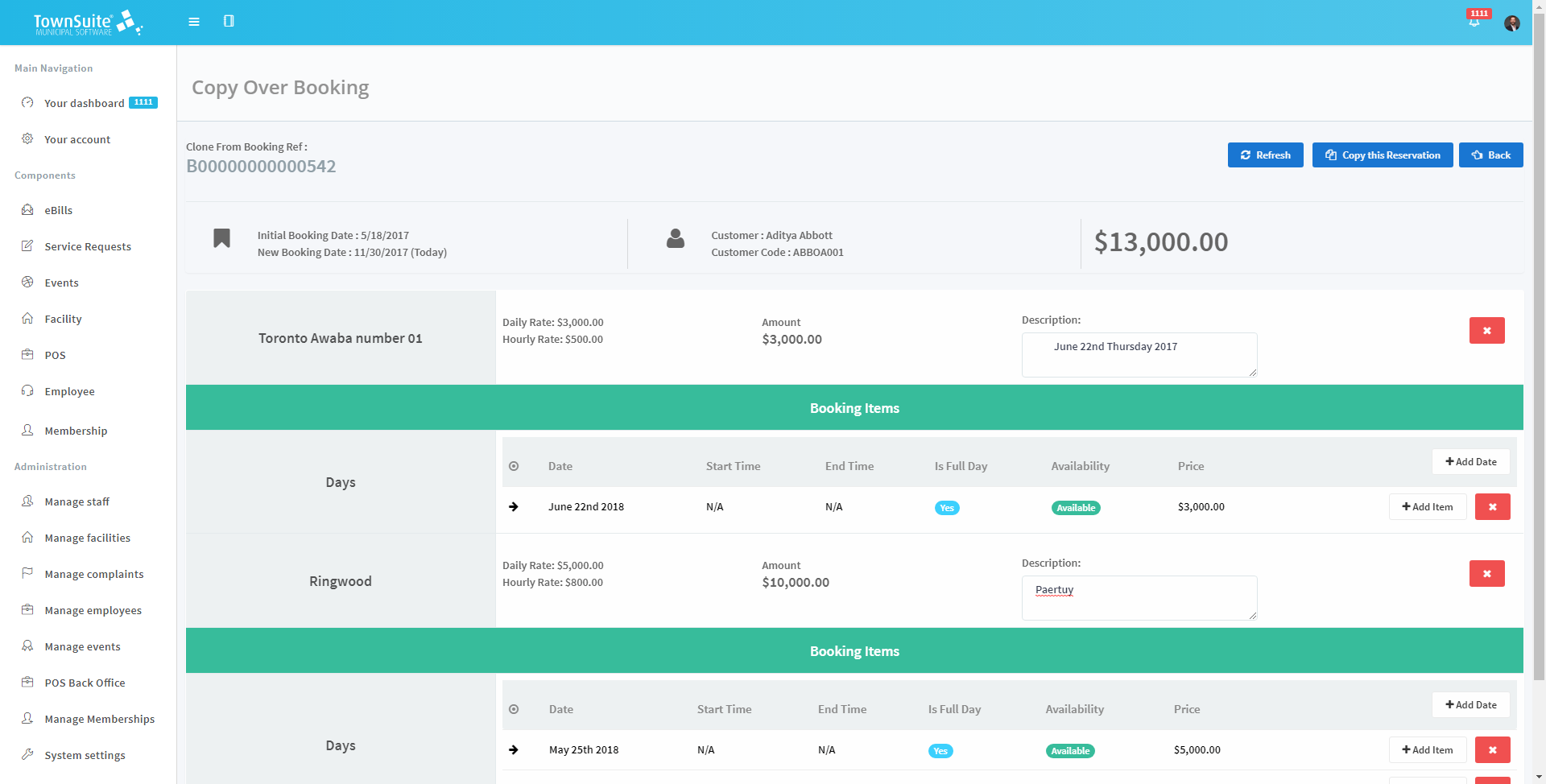
After the Copy over booking button has been clicked, you will be navigated to the Copy Over Booking page.
-
This page displays all the details of the existing reservation.
-
You can add or remove dates and make relevant changes to the description.
-
To clear the changes and display the original information, click the Refresh button.
-
To go back, click the Back button.
-
To copy the reservation, click the Copy This Reservation button and the system will display a message asking to confirm the cloning (copying).
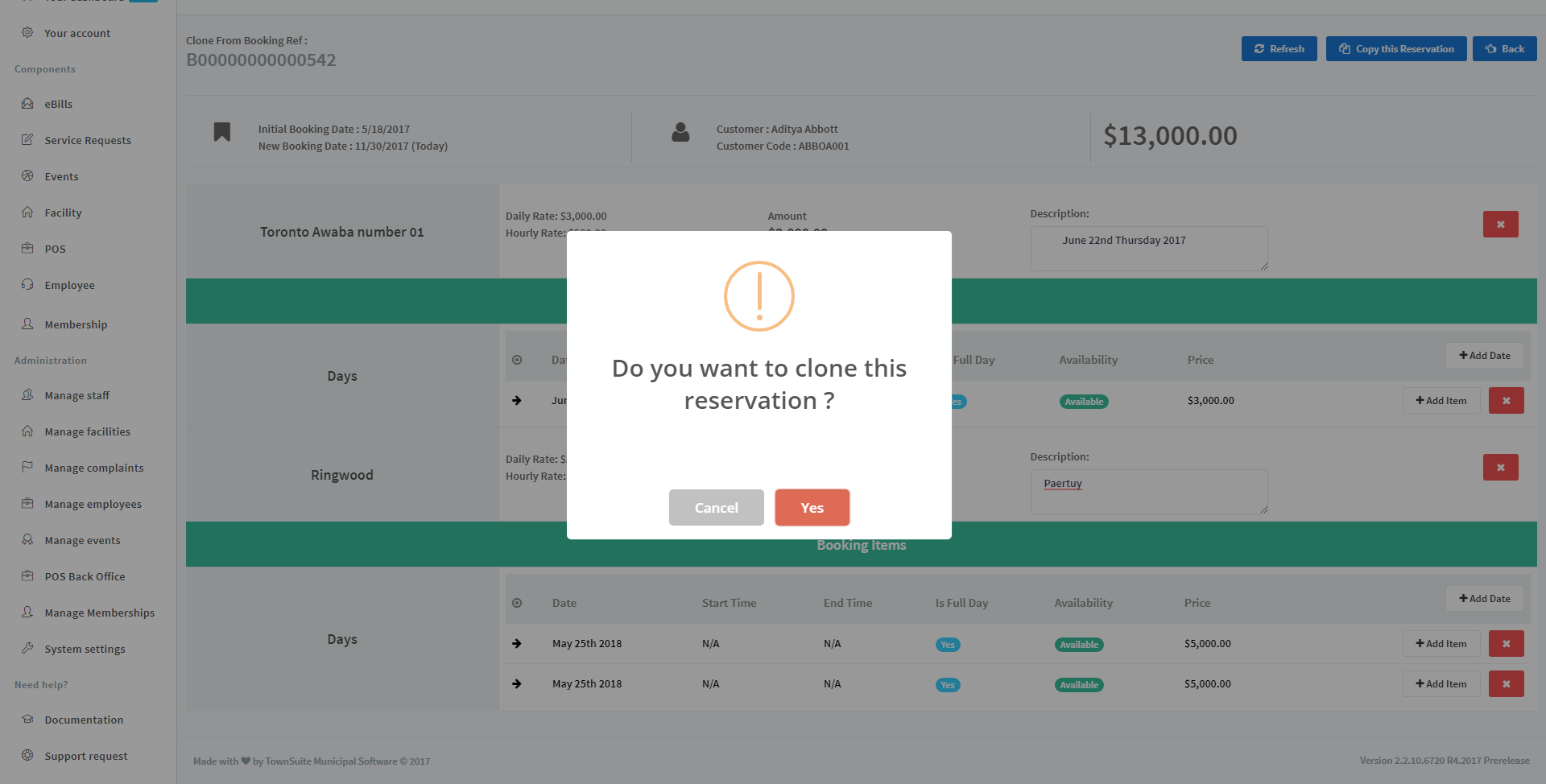
- To proceed, click the Yes button. To stop proceeding with copying the reservation, click the Cancel button and the system will display a success message.
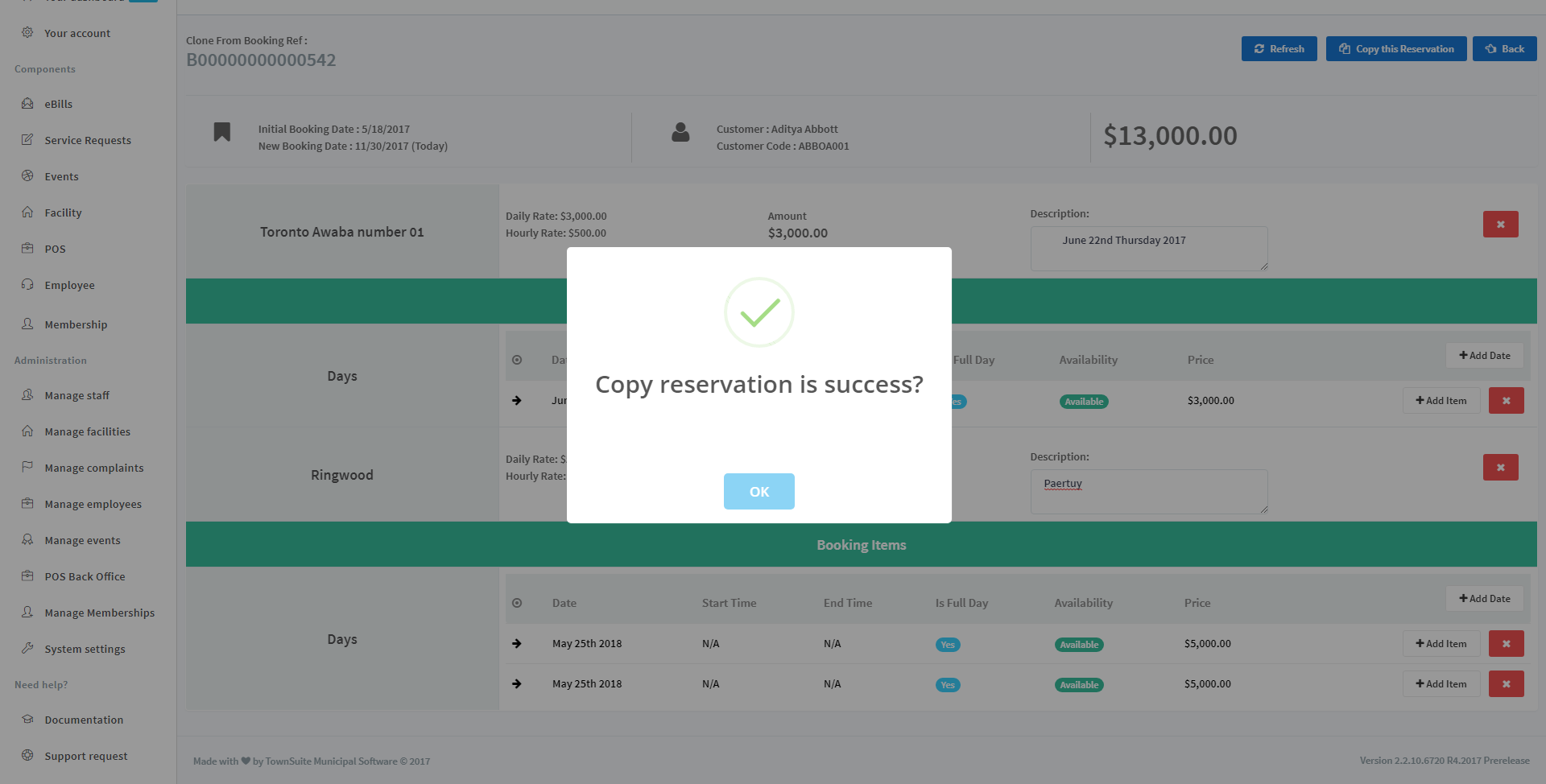
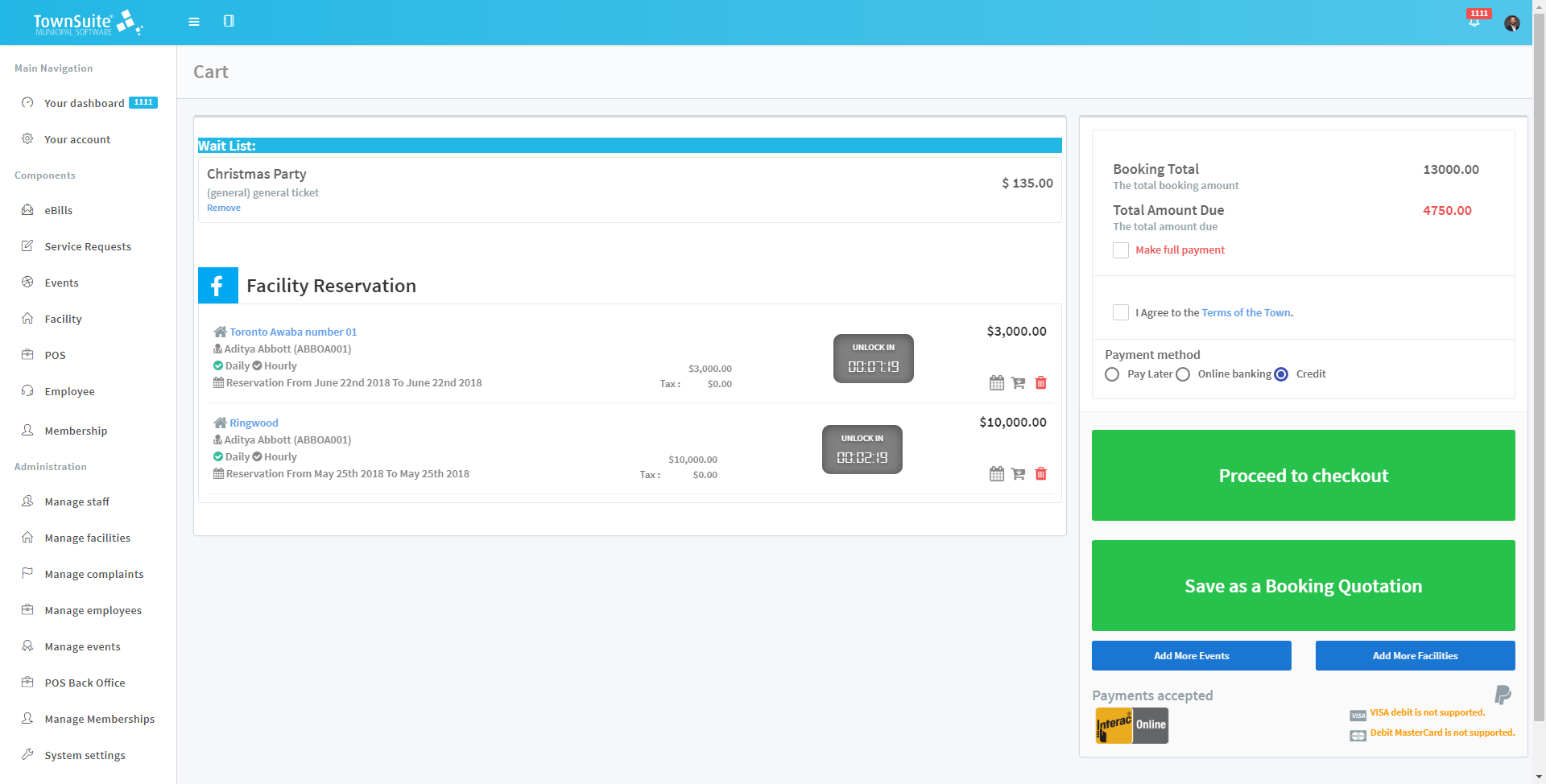
- After clicking the OK button of the success message, you will be navigated to the cart to make the payment.