
Facility Reservation
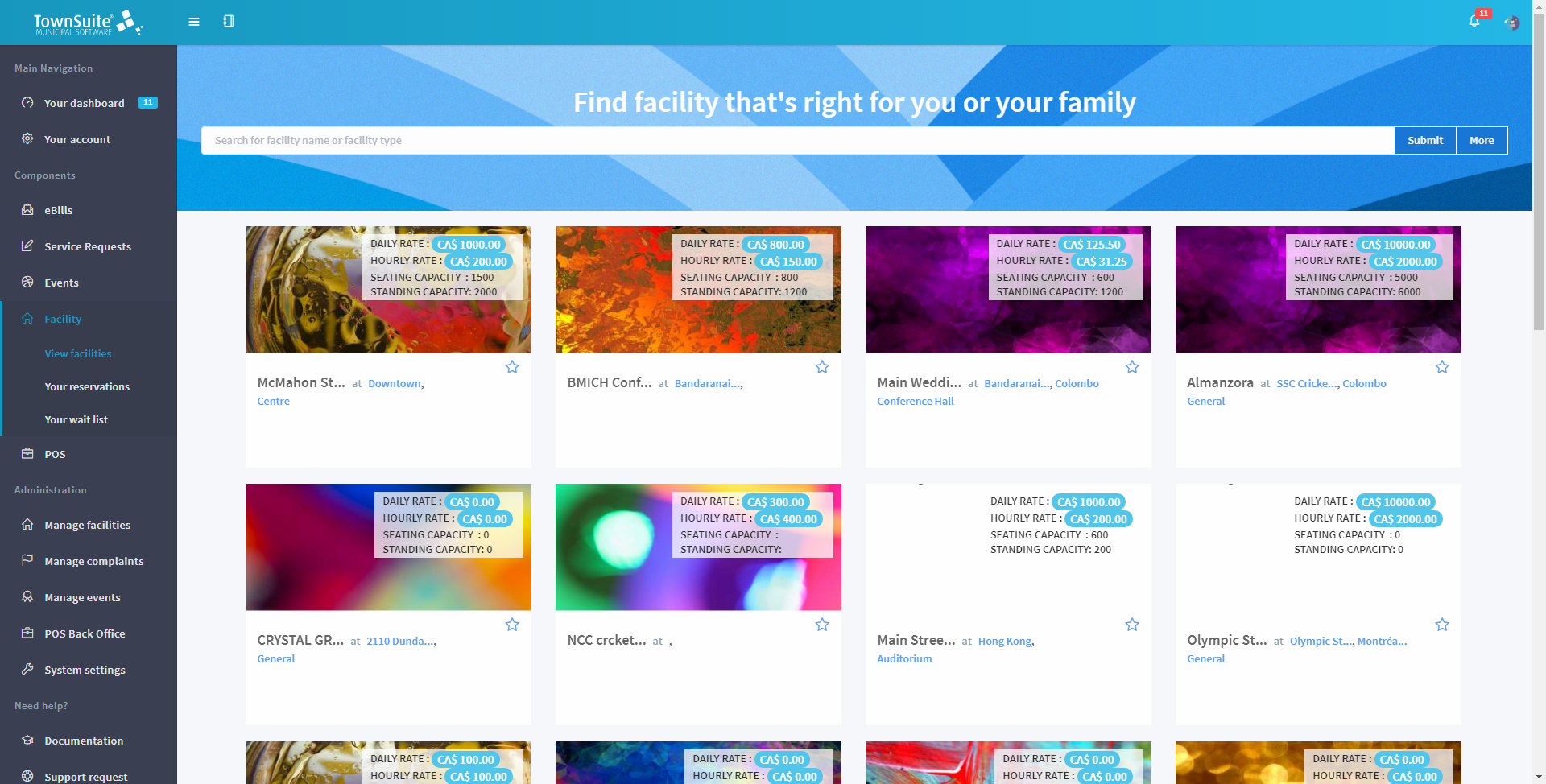
To reserve a facility, log in to the TownSuite web portal and access the Facility page by clicking on the View Facility sub heading under the Facility heading in the Components section of the main navigation pane.
-
All facilities available for renting are listed on the Facility page.
-
Click the relevant icon to initiate the reservation and you will be navigated to the main reservation page of that facility.
-
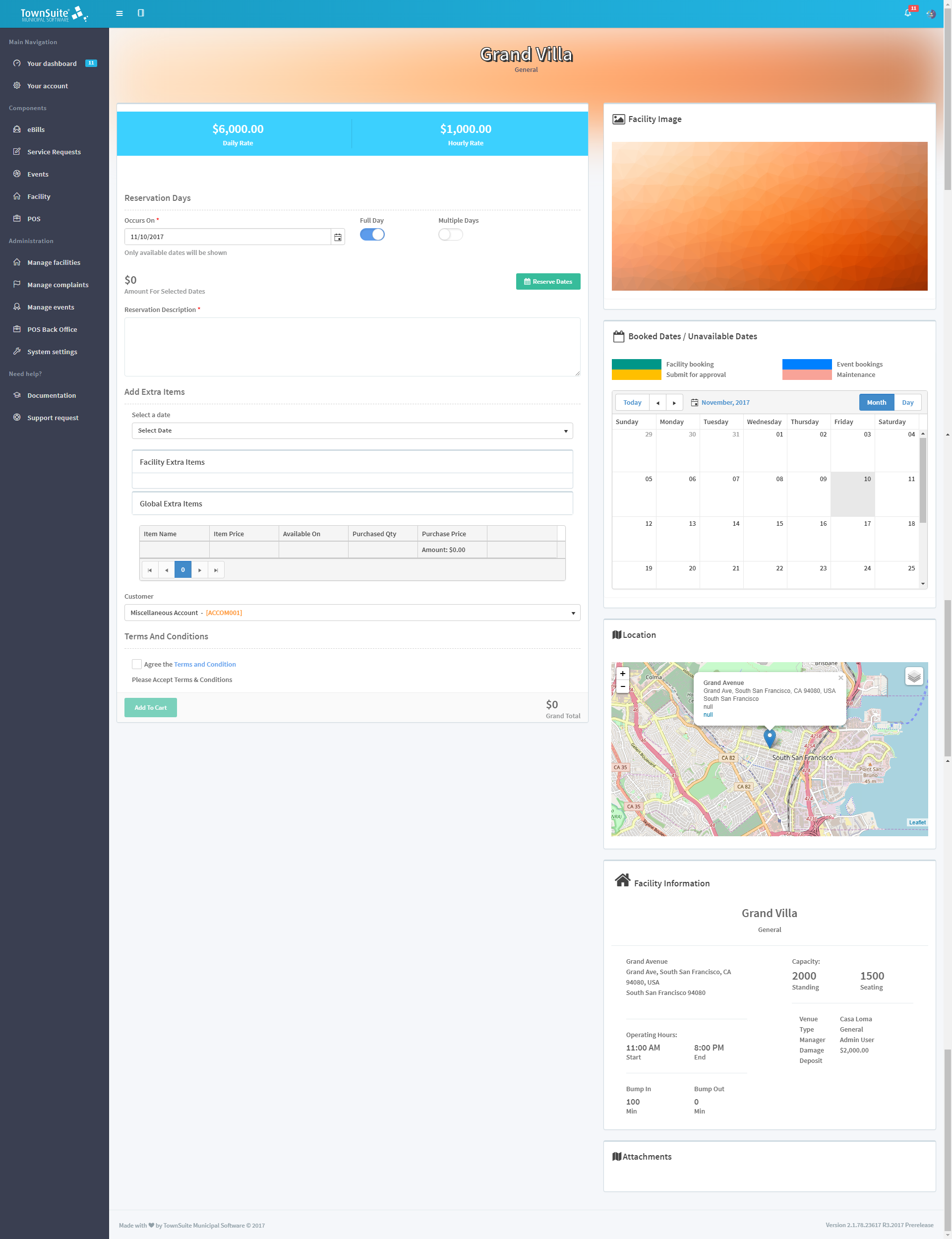
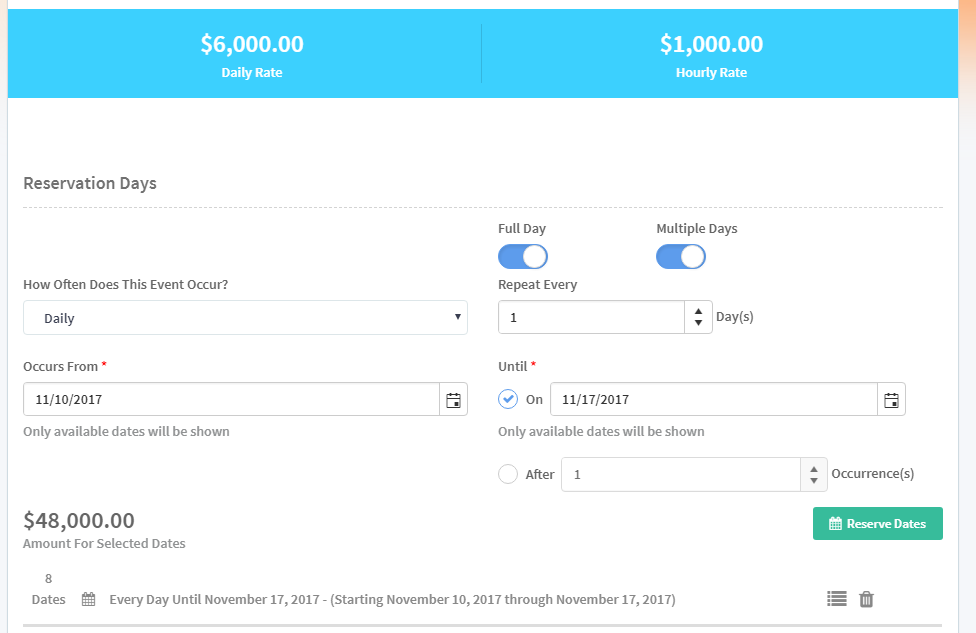
Select the reservation dates. You can reserve a full day or recurrent days.
-
By default, the Full Day toggle button is clicked and you can select the date from the Occurs On calendar control.
-
You can reserve facilities on an hourly basis. Furthermore, if there are internal bookings, those days will not be available for bookings.
-
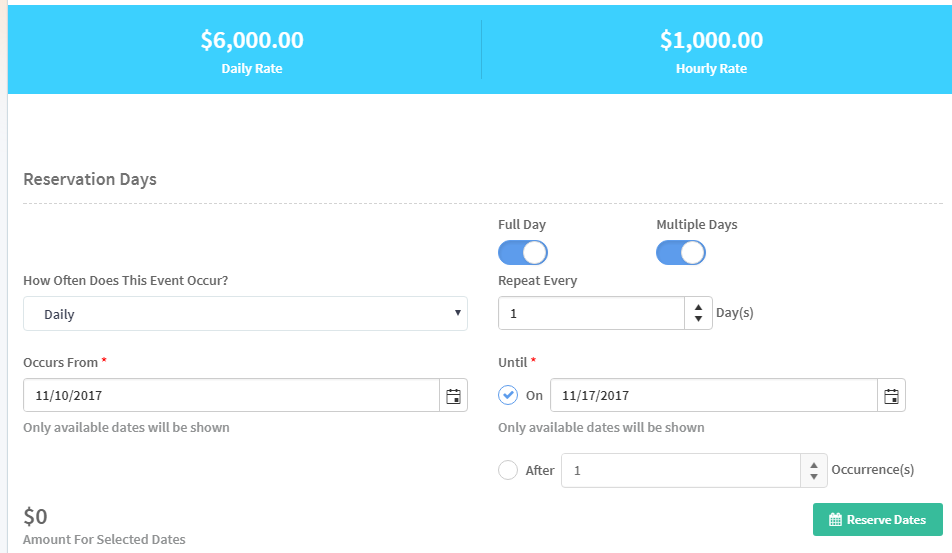
To reserve recurrent days, click the Multiple Days toggle button and the controls to select the days will appear.
-
Select the frequency and the date range then click the Reserve Dates button.
-
After the Reserve Dates button has been clicked, if all days are available, the interface will display the total amount and the schedule for the selected days. Also, the reserved dates will be listed in the facility so that the user will be able to view them at a glance.
-
Enter the reservation description in the Reservation Description text box.
-
If a date has already been booked, the reservation can be added to a waitlist. The reservation date will be added to the cart only if the existing booking is cancelled. If the user wishes to go ahead, the reservation can be added to a waitlist.
-
Meanwhile, the user can select extra items to bundle up with the reservation. However, if extra items have not been configured in the facility reservation wizard, they will not appear on the Facility Reservation page.
-
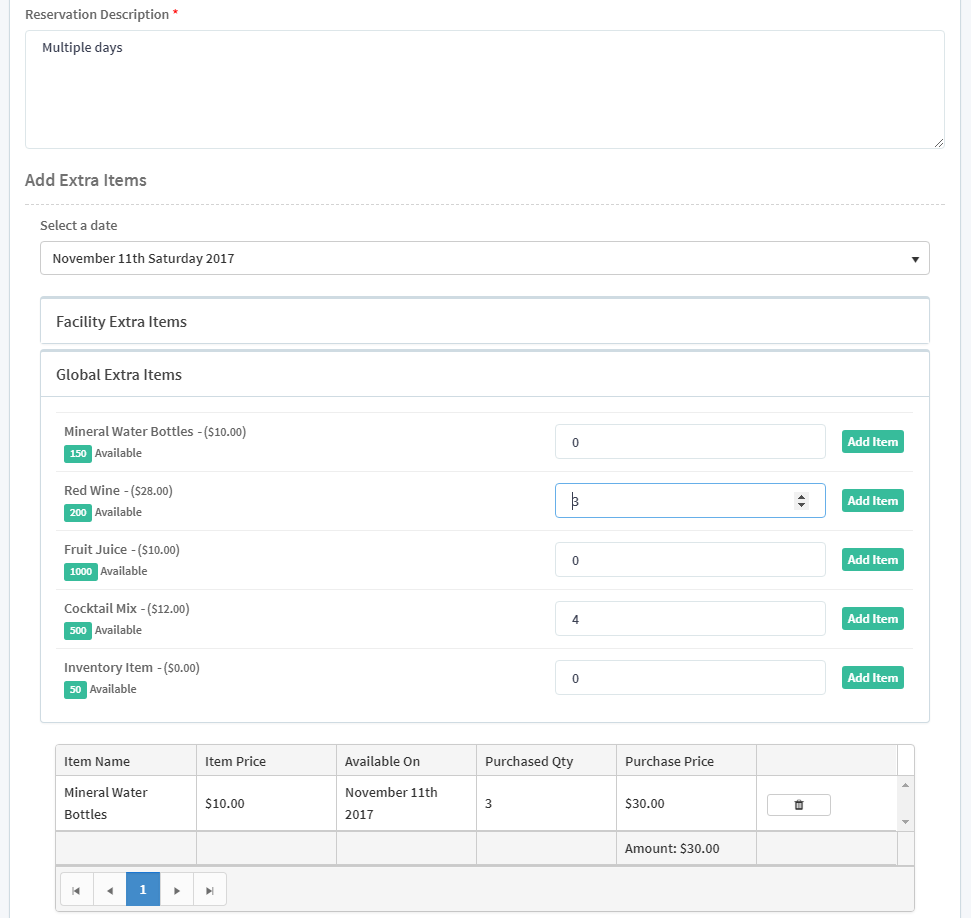
Under the Add Extra Items section, select the relevant dates from the Select a date dropdown list.
-
Next, select the extra items from the Global Extra Items section.
-
In front of the relevant item, enter the relevant quantity and click the Add Item button.
-
The added items are listed as a grid on the page.
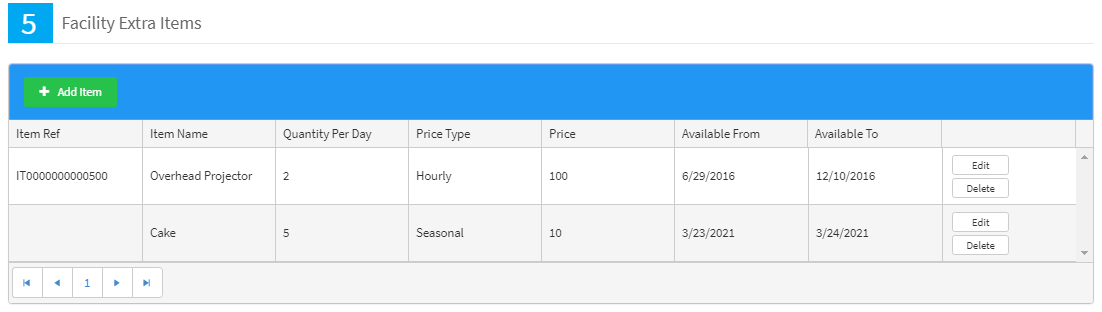
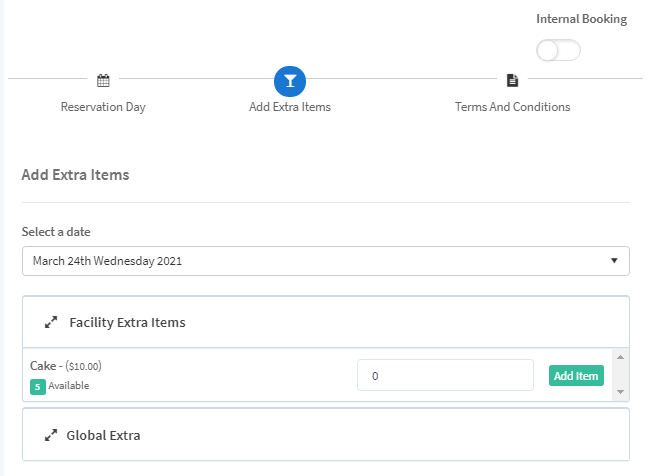
- When an extra item is set up in the facility, if it is only available for one day, that day will appear in the date selection by default.
-
The customer account will be displayed in the Customer dropdown list. Additionally, the customer selected by default can be overwritten with a new customer by an admin/staff user. However, the system automatically sets the logged in user as the customer for citizens.
-
The grand total of the reservation is displayed in the bottom.
-
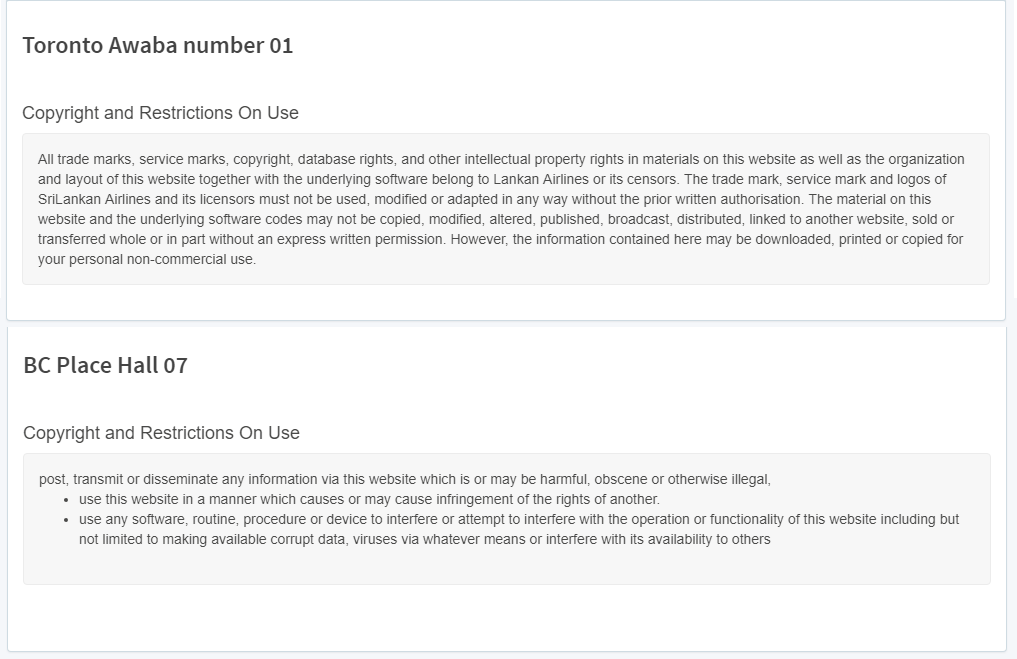
Before proceeding to the cart, you need to agree with the terms and conditions by checking the Agree the Terms and Condition box. To view the terms and conditions, click the Terms and Condition link.
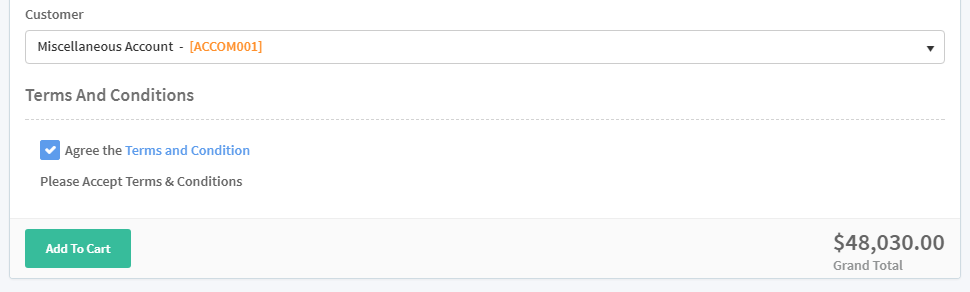
- To add to cart, click the Add To Cart button and the system will display a message asking to confirm the reservation.
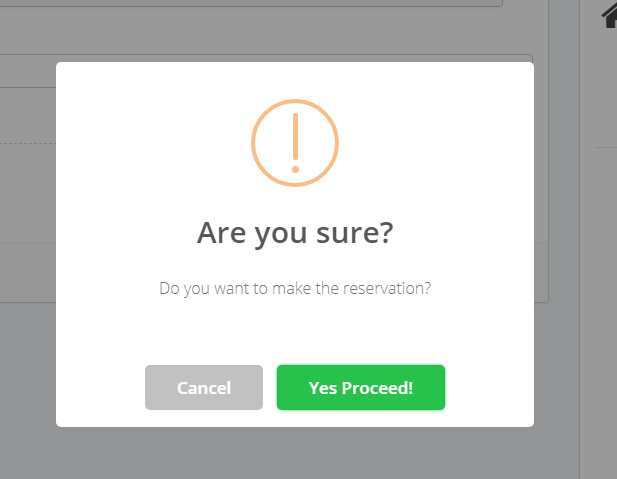
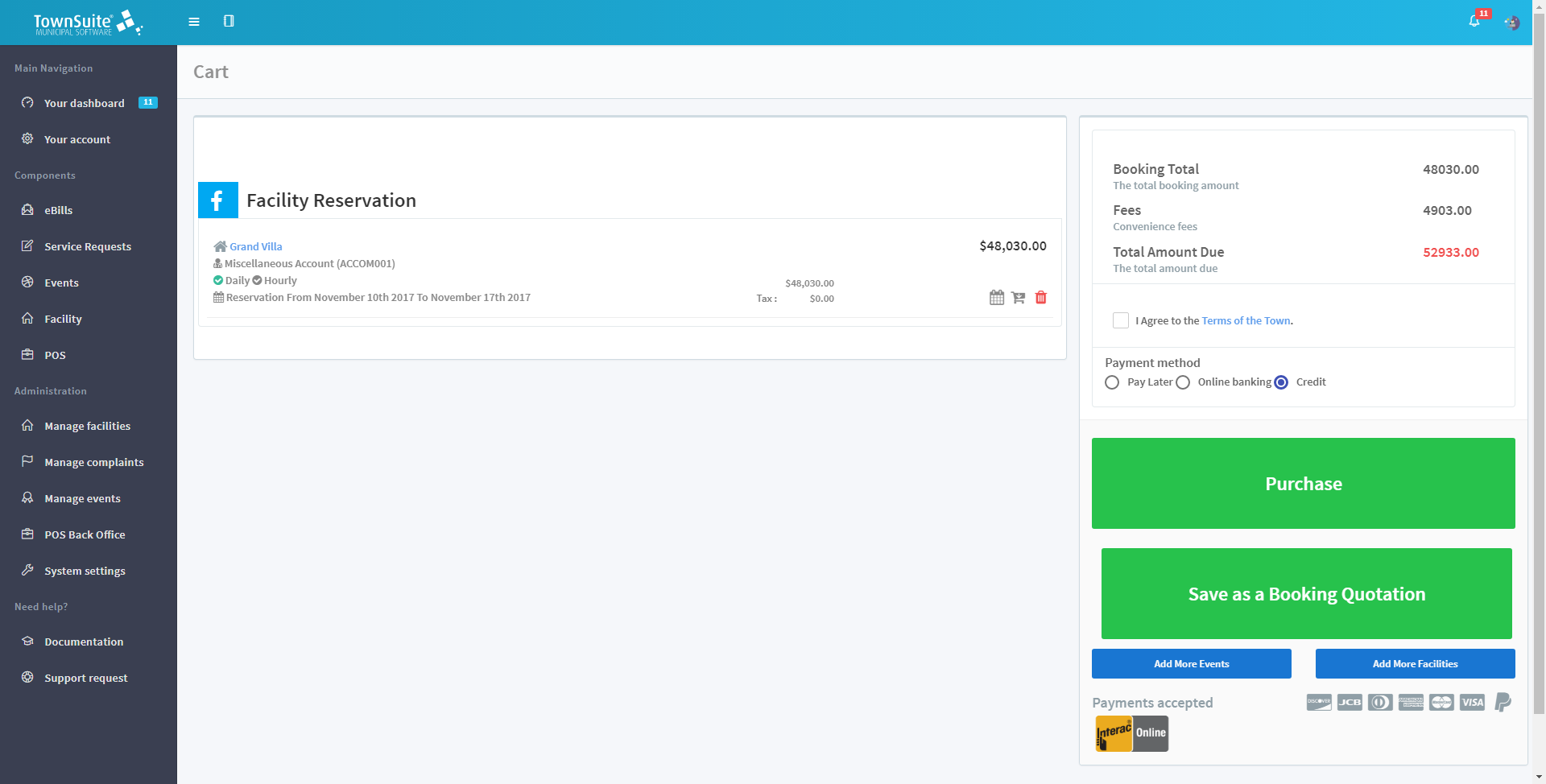
- To proceed to the cart, click the Yes Proceed button and the system will automatically make the reservation and display a success message.
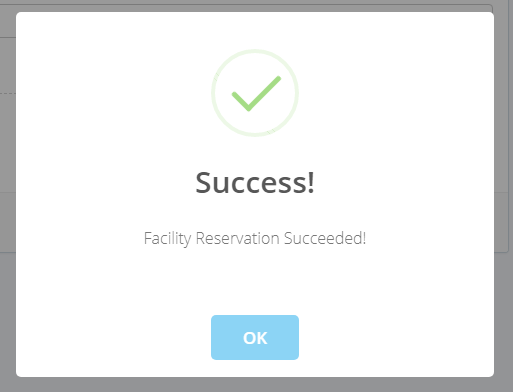
- To navigate to the cart, click the OK button.
Facility Details
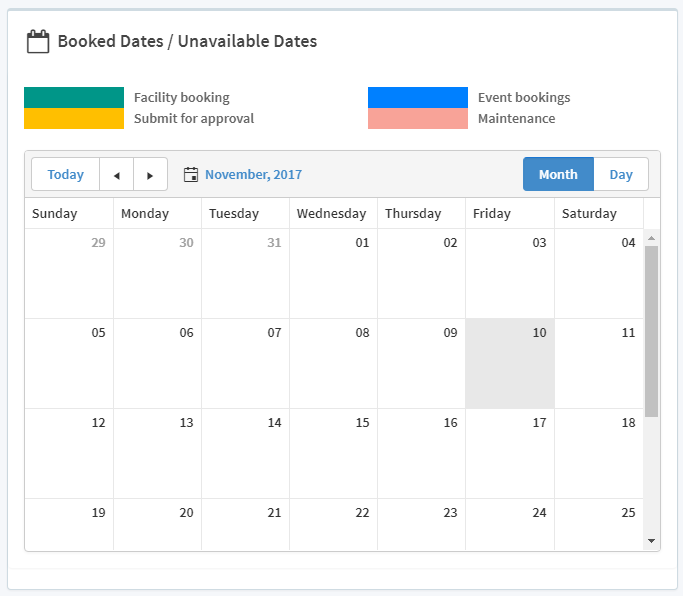
On the Facility Reservation page, there is a separate section to display the calendar with booked dates and unavailable days.
The location of the facility is graphically displayed in the Location section.

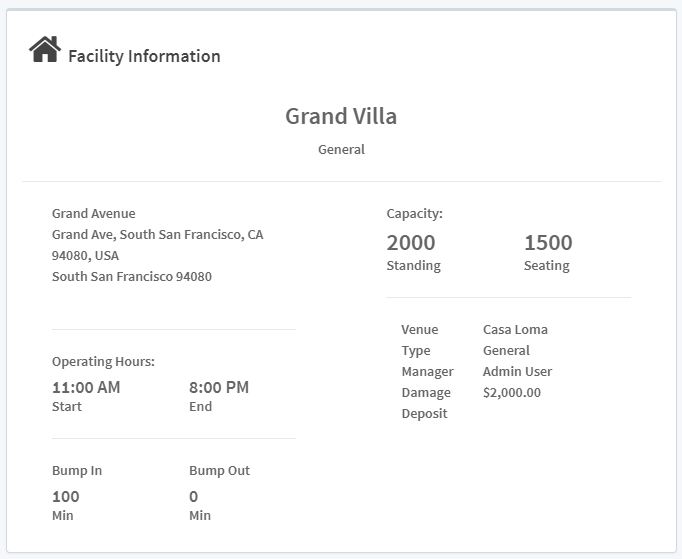
Also, the facility information is displayed separately in the Facility Information section.